Field Chooser - Staff
Web Field Chooser (v25.7+ only)
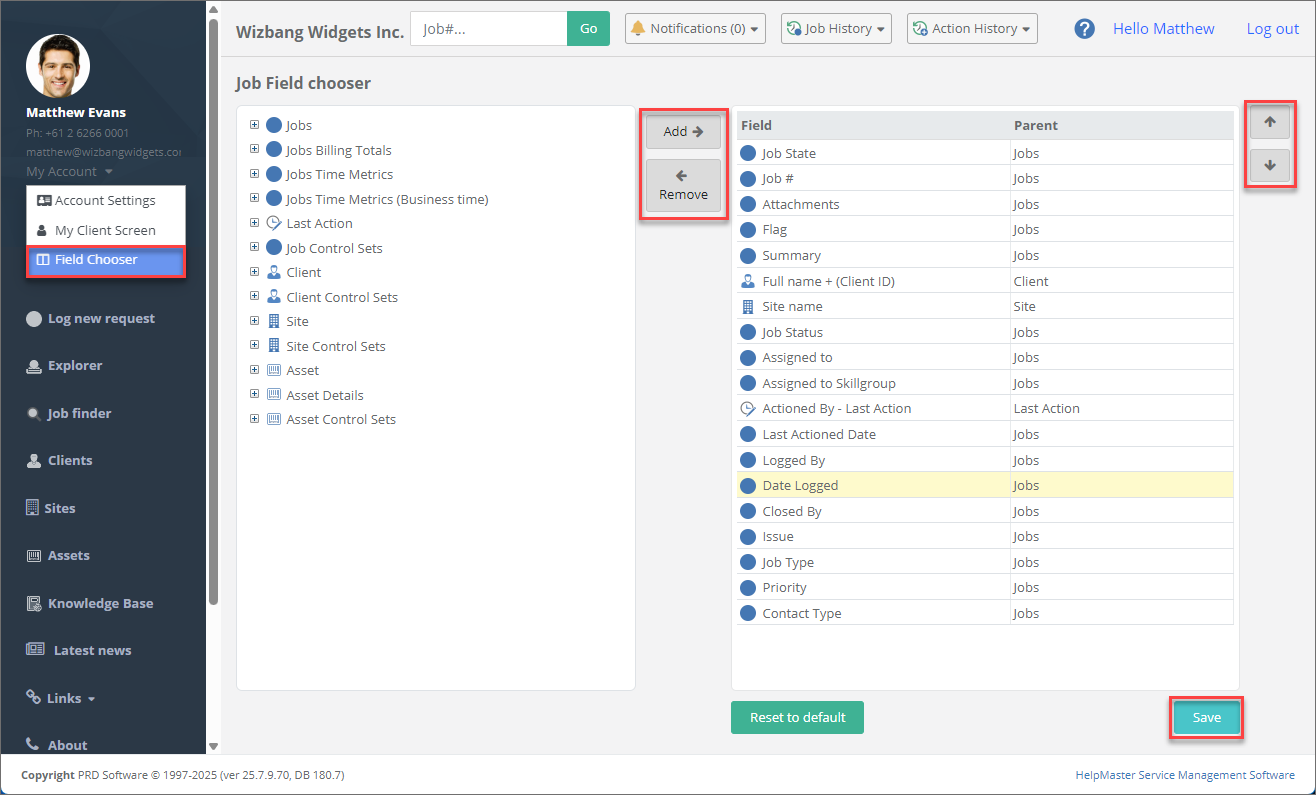
Once logged in, Staff are able to select the “Field Chooser” option from the “My Account” drop-down via the navigation pane to define which fields are to be displayed in their job queues. This has a similar look and feel to the Desktop Field Chooser screen.
Adding and Removing Fields
The panel on the left displays a tree view of all available fields for selection. The panel on the right displays currently selected fields. Adding fields may be done by dragging and dropping available fields from the LHS to the RHS panels, or by selecting fields from the LHS and clicking the Add button.
Removing fields can be done by dragging and dropping selected fields from the RHS to the LHS panels, or by selecting and using the Remove button.
Re-Ordering Fields
Selected fields can be re-ordered by selecting a field and using the Up/Down buttons on the RHS, or by dragging and dropping selected fields vertically.
Saving and Resetting
Click the Save button to save selected choices and all Web Explorer queues will now display your selected fields. Click the Reset to default button to reset all fields to the default collection.
See Also
Creating Explorer Global Queues
Feedback
Was this page helpful?
Glad to hear it! Please tell us how we can improve.
Sorry to hear that. Please tell us how we can improve.