Things to do when upgrading to v25.10
Things to configure before and after upgrading to HelpMaster v25.10
HelpMaster v25.10 has some great improvements in core functionality that has been the result of user feedback and suggestion.
Update Pre-Requisites
All Modules
All HelpMaster v25 modules require the DOT.NET Framework 4.8. Windows 11 and Windows Server 2019+ all come with this framework built-in, but for a new HelpMaster install the framework may need to be added using the Windows Control Panel > Programs and Features > Turn Windows features on or off, or from the server Add Roles and Features Wizard.
Web Portal
The web portal framework has been updated to the ASP.NET Core 9.0 Hosting Bundle. Click and download it from the previous link otherwise your web portal will give a 500.xx HTTP error. Install it only to the IIS server hosting the web portal or to the HelpMaster server.
Sending email via Workflow
If you currently use Job Workflow to send email (very common thing to do), the new Email Template tag support may be useful to you - especially if the email you’re sending contains Control Set field data, or you build-up workflow variables that store data.
Previously, the only way to embed variable “tags” into workflow email was to either use the “Simple Email” style email (no HTML, but tag support), or store variable data inside Control Set fields and then create a dedicated Email Template that used that Control Set fields (messy and lots of config).
There are 2 issues with this:
- Simple email is plain text only (no HTML), and
- Creating a new email template for each workflow scenario could lead to email template bloat and higher administration and complexity setting up the variables…
The solution in v25.10 is to use the Email Templates tags for workflow variables, and take advantage of the new email tag support for workflow variables.
Update your configuration
If you currently have workflow that sends email using the “Simple email” option, and this email uses workflow variables, consider using this new feature. Create new Email Templates that use the text in the simple email option, and use the new Workflow Variable tags to get to the data you’re after. You will get HTML support, easier management and centralized maintenance for the outgoing email - ie. You update the email template and all workflow will be updated.
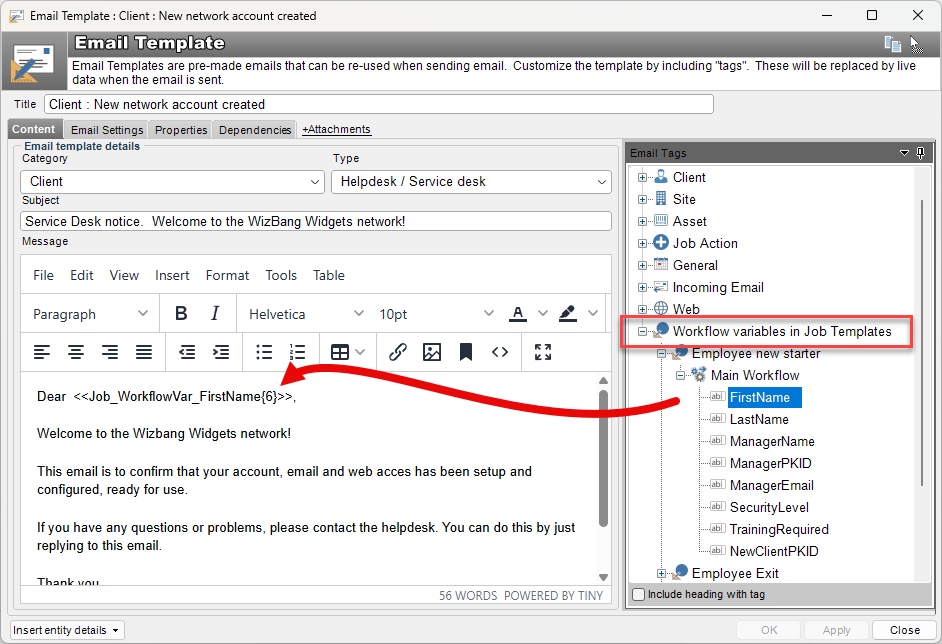
If you’re happy with the simple email with embedded variables being sent in plain text, then there is nothing to do! All good!
The Workflow Pause object
The new workflow pause object is a great new workflow option that can change the way you think about process flow and execution.
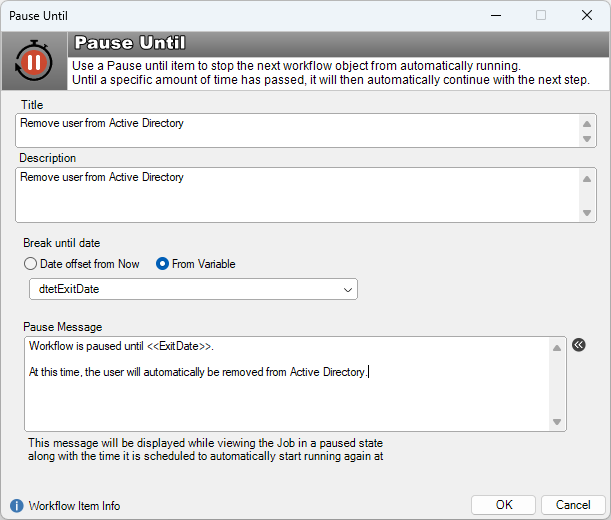
You can now delay workflow for a period of time, and HelpMaster will automatically resume the workflow when the time period has elapsed. This makes it perfect for time-based actions, or whenever you need to wait for something to happen. Previously, such a concept would need to be managed via the Priority Manager or Triggered Events (or some other custom process) to effect the pause. Now you can build it right into the workflow.
Better still, you can cascade multiple pauses to create a series of time based events, or loop back to a previous pause (with decision branching) to create recurring pauses based on some workflow variable, approval, or job condition.
Combine this concept with workflow approvals, and you can create time-outs, multiple approval escalations and more.
Create new alerts and job queues for the new “Client Resolved” flag
Clients using the web portal now have the option to mark their job with “This is resolved” as part of an update.
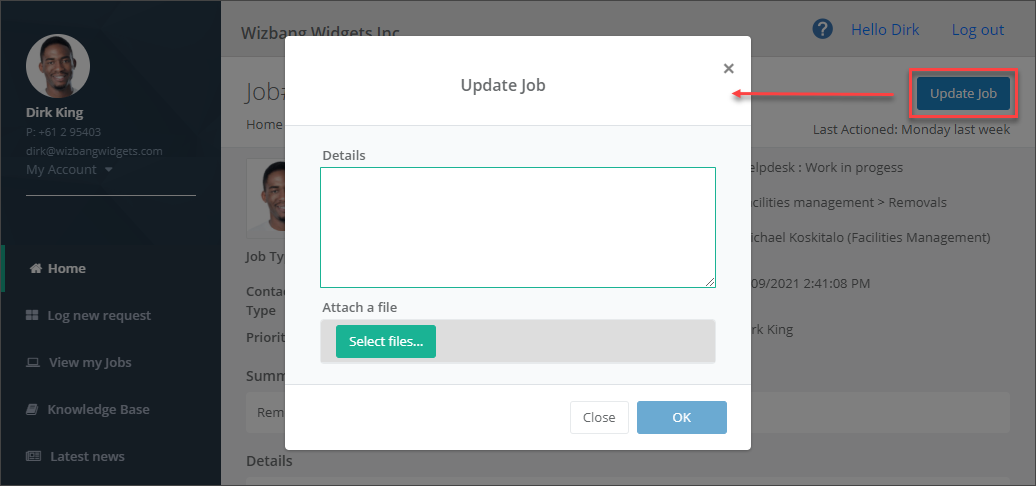
This option is simply a flag against the job to indicate this - it doesn’t close the job, or resolve it or change the job status or anything else about it apart from the fact that it is now flagged as “Is Resolved” by the client. Think of it as simply an indicator from the client’s perspective that they believe all is OK now. It is then up to the owner of the ticket, or the helpdesk / service desk to use that information and act on it if desired.
This feature also enables the ability to use this flag as an option within the Job Finder to find jobs that are marked as such. This open the door to configuration such as:
- Searching for jobs via the Job Finder
- Creating Priority Manager Profiles that include this information (notifications, automatic closures, email back to the client etc.)
- Filters for reporting
- Creating “Saved Searches” for jobs that include this information
- Creating “Global job queues” for jobs that include this information
Having this simple “Is Resolved” flag opens some interesting workflow possibilities also.
See Also
Feedback
Was this page helpful?
Glad to hear it! Please tell us how we can improve.
Sorry to hear that. Please tell us how we can improve.